Gallery guide
How to use your gallery
Did your photographer send you a link by email or message? This guide walks you through everything you can do with the gallery, step by step. There is nothing to install and no account to create – all you need is a phone or a computer and that link.
← Back to svatebni-fotograf-cechy.cz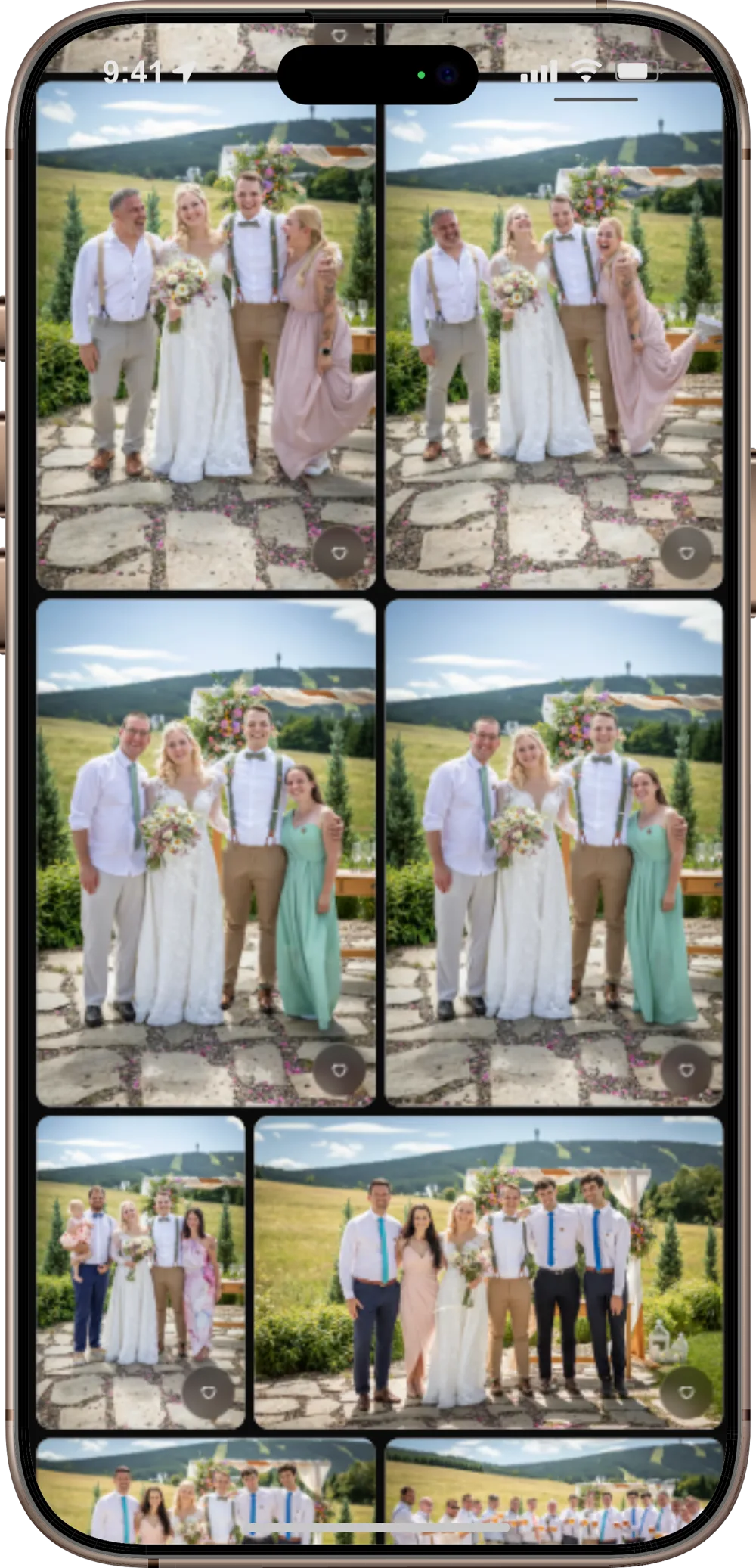
1. Your first visit
If you have never opened the gallery before, start here. It takes a minute.
- 1
Tap the link
Find the email or message from your photographer and tap the link. The gallery opens in your browser – Safari, Chrome or whichever one you normally use. You don't download, install or sign up for anything.
- 2
Enter the password if the gallery asks for one
Some galleries are protected by a password. You'll find it in the same message as the link. Your browser then remembers it for 30 days.
- 3
Have a look around
At the top is the gallery's name and a few buttons; below them, all the photos side by side. More photos load as you scroll down. Tap any photo to see it full screen.
- 4
Keep the link
You'll want to come back to the gallery. Keep the message with the link, or bookmark the page. On a phone you can also add it to your home screen as an icon using “Share”.
What's what
You'll see these three words often in this guide:
- Overview
- All the gallery's photos side by side. This is what you see as soon as you open the link.
- Photo view
- One photo full screen. It opens when you tap a photo in the overview.
- Toolbar
- The row of buttons at the bottom of the photo view – the heart, the printer, download and more.
Can't see a button this guide mentions? Your photographer switches downloads, print selection, hearts and edit requests on separately for each gallery. If something is missing, nothing is broken – it just isn't switched on for your gallery.
2. Looking through the photos
The gallery opens as an overview of all the photos. More load by themselves as you scroll down.
A photo full screen
Tap any photo and it opens full screen. The page's address then shows that very photo, so you can copy it and send it to someone. Whoever opens the link goes straight to it.
On a phone
- Swipe sideways to go to the next photo.
- Spread two fingers or double-tap to zoom in.
- Tap once to hide the buttons and see just the photo. Tap again to bring them back.
- Close it by swiping down, with the cross at the top left, or with the Back button.
On a computer
- Move between photos with the arrows at the edges of the screen or the arrow keys on your keyboard.
- Close the photo with the cross at the top left or the Esc key.
Chapters
If your photographer has split the gallery into parts – say Getting ready, Ceremony and Reception – you'll see a row of labels at the top. Tap one to jump straight to that part. The page's address changes as you go, so you can send a link to a particular chapter.
The best of the day
Above the overview there may be a selection of the loveliest photos, picked by your photographer. Tap one to move to its place in the gallery. The photo gets a frame for a moment so you can spot it easily.
Slideshow
The “Slideshow” button at the top plays the photos full screen, one after another. Handy on a TV or projector, for example when showing the photos to family. Stop it by tapping anywhere or pressing Esc.
The slideshow shows the photos the gallery has already loaded. In a large gallery, scroll all the way to the bottom first.
When your photographer adds something to the gallery, it won't appear in the overview by itself. Just reload the page.
3. Choosing photos for print
You mark the photos you want on paper right in the gallery. No need to write a list or send an email – your photographer sees your choice on their side. There are two ways to mark photos, and you can switch between them freely.
In the overview
Quick when you're going through the whole gallery.
- 1
Show the printers
On a phone, tap the button at the top, next to the gallery's name. A small printer then appears at the top right of every photo.
On a computer, just move your mouse over a photo and the printer appears by itself.
- 2
Tap the printer
Tap on the photo you want printed. That marks it for print as one copy.
In the photo view
When you want a good look at the photo first.
- 1
Tap the photo
It opens full screen.
- 2
Tap the printer
You'll find it in the toolbar at the bottom: . That marks the photo for print as one copy.
- 3
Carry on with the next photo
Swipe sideways or use the arrows, and keep marking the same way.
How many copies?
After the first tap, the printer turns into a counter. It works the same in the overview and in the photo view.
- adds another copy of the same photo. Three copies, say – one for you, one for your parents and one for grandma.
- takes one copy away. When you take away the last one, the mark disappears and the plain printer comes back.
- You can ask for up to 99 copies of one photo.
- When several people choose through the same link, you'll see a grey number next to the counter, such as (+2). Those are copies the others want of that photo. Your own count doesn't change.
The summary at the top
While you choose, a bar stays at the top so you can see at a glance how much you have.
For print: 24 photos · 30 copiesSavedWith everyone: 31 photos · 42 copies
- Photos
- How many different photos you have chosen.
- Copies
- How many prints that adds up to – you may want some photos more than once.
- With everyone
- The total for everyone choosing through the same link as you. It only shows when more than one person is choosing.
- Saved
- Your selection is safely saved. There is no “Send” button, and none is needed.
Who sees your selection
A print selection isn't a private notebook – it's an order that several people can put together at once. So it's good to know who sees what.
- Your photographer
- Sees everything: which photos, how many copies, and from whom, if you add your name.
- Anyone with the same link as you
- Your partner or parents, say, if you forward them the link. On each photo they only see the grey number of copies the others want, plus the overall summary. They can't see who chose what.
- Guests from the wedding page
- They have their own link, so they don't see your selection at all – and you don't see theirs.
So only send the link to your gallery to people you want to choose with.
Start on your phone, carry on at home
The gallery remembers your selection in the browser you make it in – no account, no password. To carry on on another device, you move it across with a short code.
- 1
On the first device, ask for a code
Scroll right to the bottom, below the photos, and tap “Continue on another device”. An eight-character code appears, such as K7P2-M9XQ.
- 2
On the second device, open the same gallery
Use the same link as before – from your photographer's email or message, for example.
- 3
Enter the code
Right at the bottom, click “I have a code”, type it in and confirm with “Transfer”. The page reloads and your selection is there.
- The code is valid for 15 minutes and works only once. If you miss it, just create a new one.
- Capital letters and the dash don't matter.
- Everything comes across: your print selection, hearts, reactions and your name.
- From then on both devices share one selection. What you add on the computer shows up on your phone after a reload.
- Enter the code before you start marking anything on the second device. Anything you mark there before that stays with your photographer as a separate selection, which you can no longer change.
Choosing as a couple? You don't need to move anything – each of you can choose on your own phone and the selections add up. Or use the code to share one selection across both phones.
Good to know
- A heart isn't a print. A heart saves a photo to your favourites. Your photographer only adds it to the prints when you tap the printer.
- When you've finished choosing, let your photographer know. They can see your selection as it grows, but can't tell when it's complete. A short message is enough.
- Add your name. The first time you mark a photo, the gallery asks for your name. Your photographer then knows whose selection is whose. You can skip it if you like.
- No signal? No problem. On a train or out in the country you'll see a note that changes are waiting. They save themselves as soon as you're back online.
- Can't see a printer at all? Your photographer hasn't switched print selection on for this link. Send them a message and sort it out together.
4. Favourites and reactions
Use the heart to mark the photos you like best. Handy for picking photos for an album, or for showing them to family all in one place.
How to give a photo a heart
- On a phone, open the photo and tap in the toolbar at the bottom. Or tap the button at the top and the hearts appear right on the photos in the overview.
- On a computer, move your mouse over a photo – the heart is at the bottom right.
Favourites only
As soon as you have your first favourite, a button with a heart and a number appears at the top. Tap it to see only your favourites; tap again to see all the photos.
The number next to the heart shows how many people have the photo among their favourites. Nobody can see who exactly.
Reactions
In the photo view, next to the heart, you'll also find five emoji: ❤️ love, 😮 wow, 😂 laughter, 🥲 touched and 👏 applause. You can give each photo one reaction. Tap again to remove it or swap it for another. In the overview you'll then see how others reacted to each photo.
The gallery remembers hearts and reactions just like your print selection – in the browser you give them in. To move them to another device, use a code, see Start on your phone, carry on at home.
Can't see any hearts? Your photographer hasn't switched them on for this link.
5. Downloading photos
You can download photos in full quality – one at a time, just the ones you choose, or the whole gallery at once.
One photo
- 1
Open the photo
Tap it in the overview.
- 2
Tap the down arrow
You'll find it in the toolbar at the bottom: . The original downloads in full quality.
Just the ones you choose
- 1
Select the photos
On a phone, hold your finger on a photo until it's selected. Then add more with a normal tap.
On a computer, move your mouse over a photo and click the circle at the top left. Hold Shift to select every photo between the last one you selected and the one you click.
- 2
Download them
Tap the “Download” button at the top, which shows how many photos you've selected. Several photos download as a single ZIP file. Clear the selection with the cross next to it.
The whole gallery
- 1
Tap “Download all”
The button is at the top and also shows the size. One ZIP file with all the photos downloads.
Good to know
- What's a ZIP? A single file with the photos packed together inside. On a computer you open it with a double-click, on an iPhone in the Files app and on Android in the file manager.
- Download the whole gallery on a computer and over Wi-Fi if you can. It can be several gigabytes. For large galleries, the gallery asks you once more before the download starts.
- Seeing “Preparing archive”? The file with all the photos is still being put together. Meanwhile you can download just the photos you choose, or come back in a little while.
- “Select all loaded” selects only the photos the gallery has already loaded. For the whole gallery, use “Download all”.
- Can't see any download button? Your photographer hasn't switched downloads on for this link. Send them a message.
6. Photo edits and requests
Would you like something changed on a photo – a stain retouched, the horizon straightened, a lamp taken out of the shot? Write it to your photographer right on the photo; there's no need to describe it in an email. Edit requests are just between the two of you: they open with the six-digit PIN your photographer sent you with the gallery.
How to write a request
- 1
Turn on edit requests
At the top of the gallery, tap Edit requests and enter the PIN. You're asked for it every time – anyone who only has the link can neither write nor see requests.
- 2
Open the photo
On a phone the requests show in the lower part of the screen; on a computer, to the right of the photo. Move between photos as usual.
- 3
Write what to change
A few words are enough, such as “retouch the stain on the dress”. With Mark the spot and a tap on the photo you can show the exact place – a number appears on the photo, the same as on your request.
Changing and deleting
Until your photographer has dealt with a request, you can change or delete it at any time. It saves straight away; there's nothing to send at the end.
Done ✓
When your photographer uploads the corrected photo, the request shows Done ✓ and you'll see the new version in the same place in the gallery. Its hearts and print selection stay with it.
In the overview, photos with a request carry a number with a pencil. Leave the mode with Done, by closing the page, or it ends by itself after two hours.
Can't see the Edit requests button? Your photographer hasn't switched it on for this link – just send them a message.
7. Photos from guests
When your photographer switches it on, guests can add photos to the gallery too – no app and no sign-up. All they need is the link or a QR code.
- 1
Tap “Add photos”
The button is at the bottom of the screen. Pick photos from your phone, or use “Take a photo” to take a new one straight away.
- 2
Write your name
The first time, the gallery asks for your name. It appears with your photos so the newlyweds know whom to thank. You can carry on without a name too.
- 3
Wait for the photos to upload
The screen stays on while uploading. If it gets interrupted, the rest is sent when you open the gallery again.
Good to know
- A photo added by mistake can be deleted. Open it and tap “Delete my photo” at the top left. It works from the device it was added from, or from another one you link to it with a code.
- Photos from an iPhone work without any trouble. The browser sends them in a common format by itself. The gallery doesn't accept videos, and one photo can be at most 25 MB.
- One person can add up to 150 photos. That's plenty for a whole wedding, and it keeps the gallery easy to look through.
- To change your name, use the “Change” link at the bottom, by the “Add photos” button. It changes on all your photos in the gallery.
A wedding page with several galleries
Your photographer can bring all the galleries from one wedding together under one link. You'll see them as large tiles, with the guests' gallery below. The link stays the same as more galleries are added. Get back to the overview with the link bearing the wedding's name at the top.
8. Viewing without internet
Off to the countryside or on a plane? You can save the photos to your device beforehand and look at them without internet.
- 1
Scroll to the end of the gallery
Only the photos the gallery has already loaded are saved. In a large gallery, scroll right to the bottom first.
- 2
Tap “Offline” at the top
You'll see how many photos will be saved and how much space they take. If you've marked some, you can save just your favourites and print photos.
- 3
Choose “Make available offline”
When you see “Gallery is available offline”, you're done.
- Smaller versions of the photos for your screen are saved, not the originals. For printing or keeping, download the photos.
- An iPhone clears saved photos by itself after about a week without opening them. Just save them again.
- Delete the saved photos in the same window with “Remove from device”.
9. Your name and privacy
The gallery needs no account and no email. It only recognises you by the browser you open it in. You don't have to give your name – but if you do, it will be seen by:
- Others in the gallery
- At the top of the gallery are the initials of people who have looked at it recently and given their name. The full name shows when you hover over them.
- Whoever is looking with you
- When you have the gallery open at the same time, the others see that you're looking right now.
- Next to your photos
- Photos you add show who they're from.
- Your photographer
- Sees whose print selection is whose.
For hearts, reactions and print selections, others only see numbers, not names.
Don't count me
The gallery counts visits anonymously and without IP addresses. If you'd rather your visits weren't counted at all, tap “Don't count me” right at the bottom. Your name then disappears from all galleries.
Think it over – it can't be undone. Photos you've added stay in the gallery, but you can no longer delete them. And you can no longer give hearts or choose photos for print in this browser.
10. When something doesn't work
- The gallery asks for a password. Your photographer sent it to you with the link. Mind capital and small letters. After five wrong attempts, the gallery locks for 15 minutes. Your browser remembers the right password for 30 days.
- The edit request PIN doesn't work. Check that you're entering all six digits from the delivery message. After ten wrong attempts, entering is locked for 5 minutes. When your photographer creates a new PIN, the old one stops working – ask them for it.
- “This link no longer works” The link has expired. Send your photographer a message and they'll send you a new one.
- “This link doesn't go anywhere” Probably only part of the address was copied. Open the link again straight from the original message, or scan the QR code.
- “Your last mark didn't save” Check your connection and try again.
- You can't see new photos. Reload the page.
- A button this guide mentions is missing. Downloads, hearts, print selection, edit requests and adding photos are switched on by your photographer separately for each link – so guests may have different options from you. If you can't see something, nothing is broken. Send them a message and sort it out together.
Still stuck? Write to your photographer – happy to help.